
OpenCart
Overview
The article below describes the process of installing and configuring the Mokka module for CMS OpenCart, which greatly simplifies the process of integrating with the Mokka service for a partner.
Installation
The module can be installed through the admin panel manually by transferring the module files to the server. Download the OpenCart Mokka module before starting the instructions.
-
Login to your website admin panel.
-
In the administrative section of your site, the section Extensions –> Installer (2 in the picture) – click the “Download” button (3 in the picture). We select the archive of the module previously downloaded to the computer and load it.
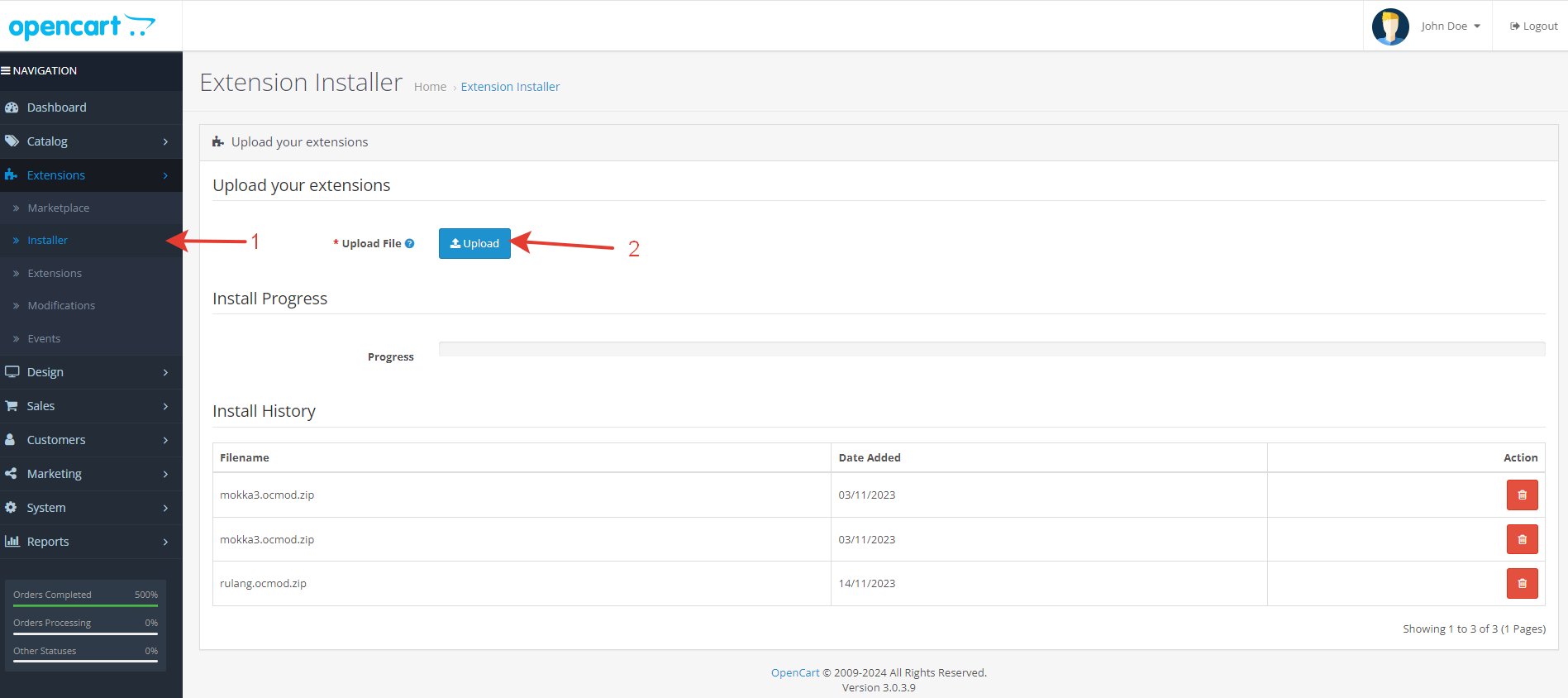
-
After uploading, you will be able to see your module archive in the list, like this:

- Next, you need to update the modifiers to add the changes necessary for the module to work. If the modifiers are not updated, then the Mokka view will disappear on the product page. To do this, go to the “Modules / Extensions –> Modifiers” section, find “Mokka – advance payment” in the list of modifiers, check the box next to the module and click the update button in the upper right corner.
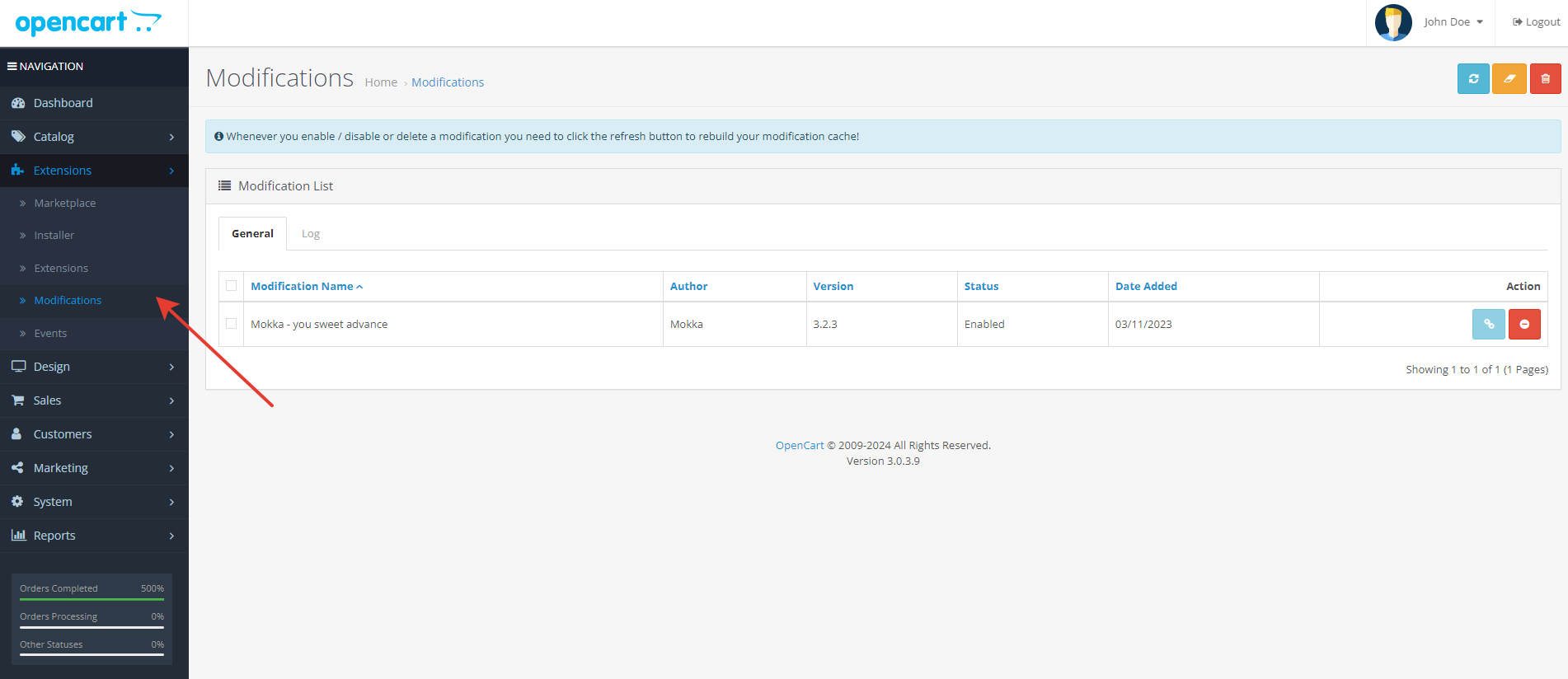
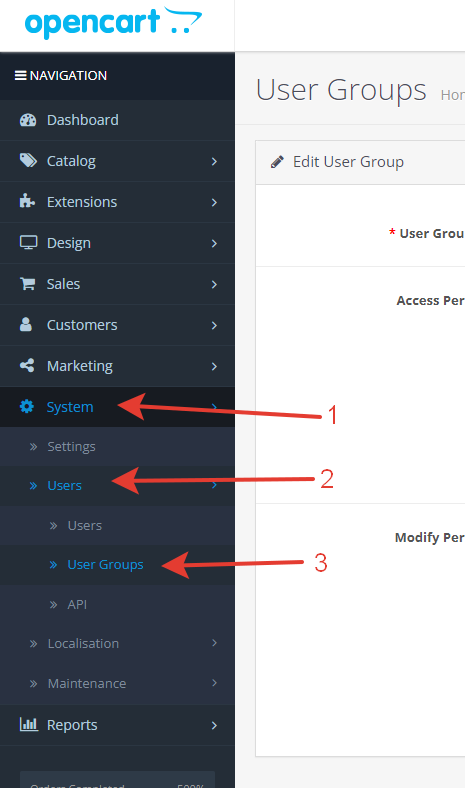
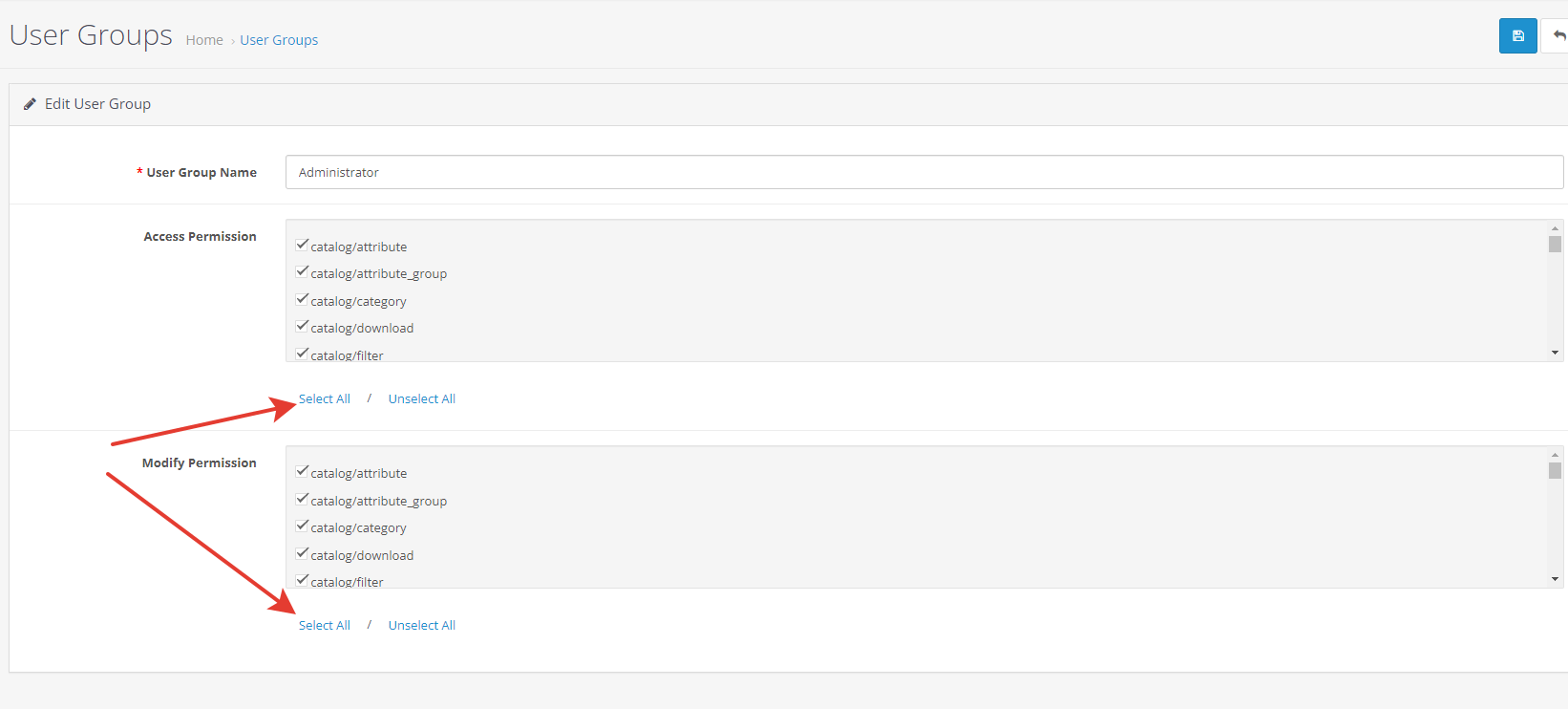
- Next, go to the “System” tab => “Users” => “User groups”
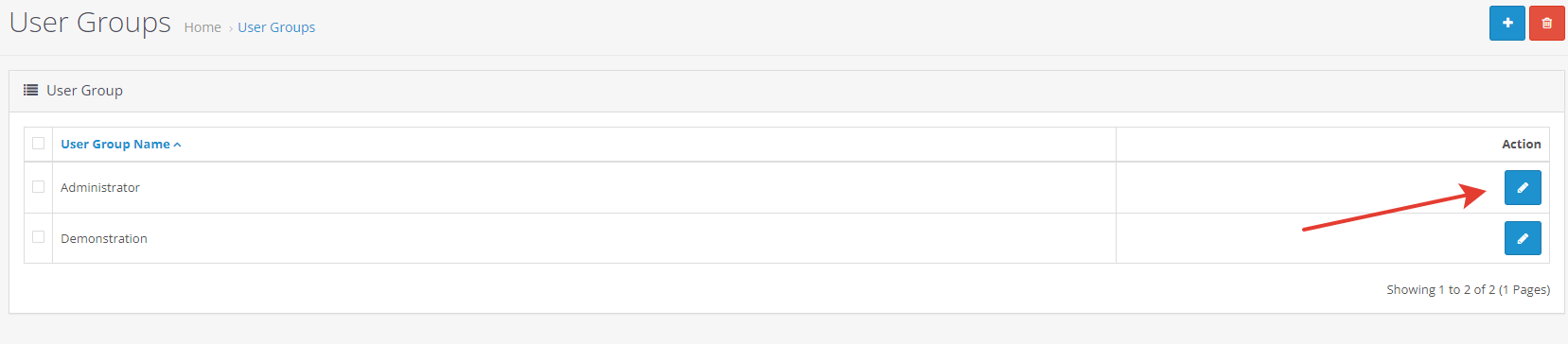
- Select the user “Administrator”, click “Edit”.
- In the window that appears, select “Select all” (1) – “Select all” (1) and “Save” (2)
- The next step is to install the module. To do this, go to the Extensions –> Extensions page. In the filter, select “Payment”, the list of modules will be updated.
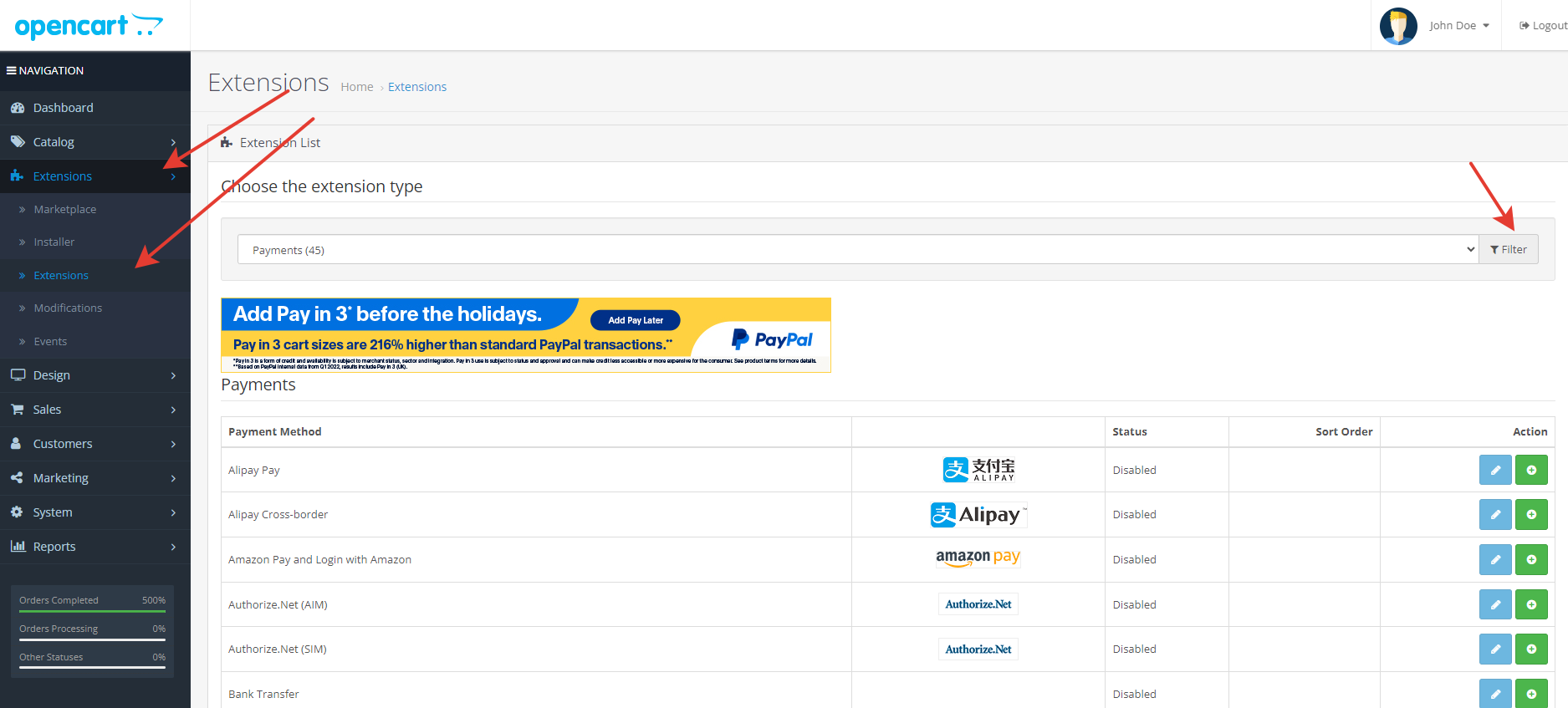
- In the list of modules we find “Mokka” and click “Activate” in the column “Actions” opposite the module.

- The module is installed. Next, the module must be configured correctly.
Settings
On the Extensions –> Extensions page. In the filter, select “Payment”, the list of modules will be updated. In the list of modules we find “Mokka” and click “edit” in the column “Actions” opposite the module.

* marked mandatory fields
API settings tab
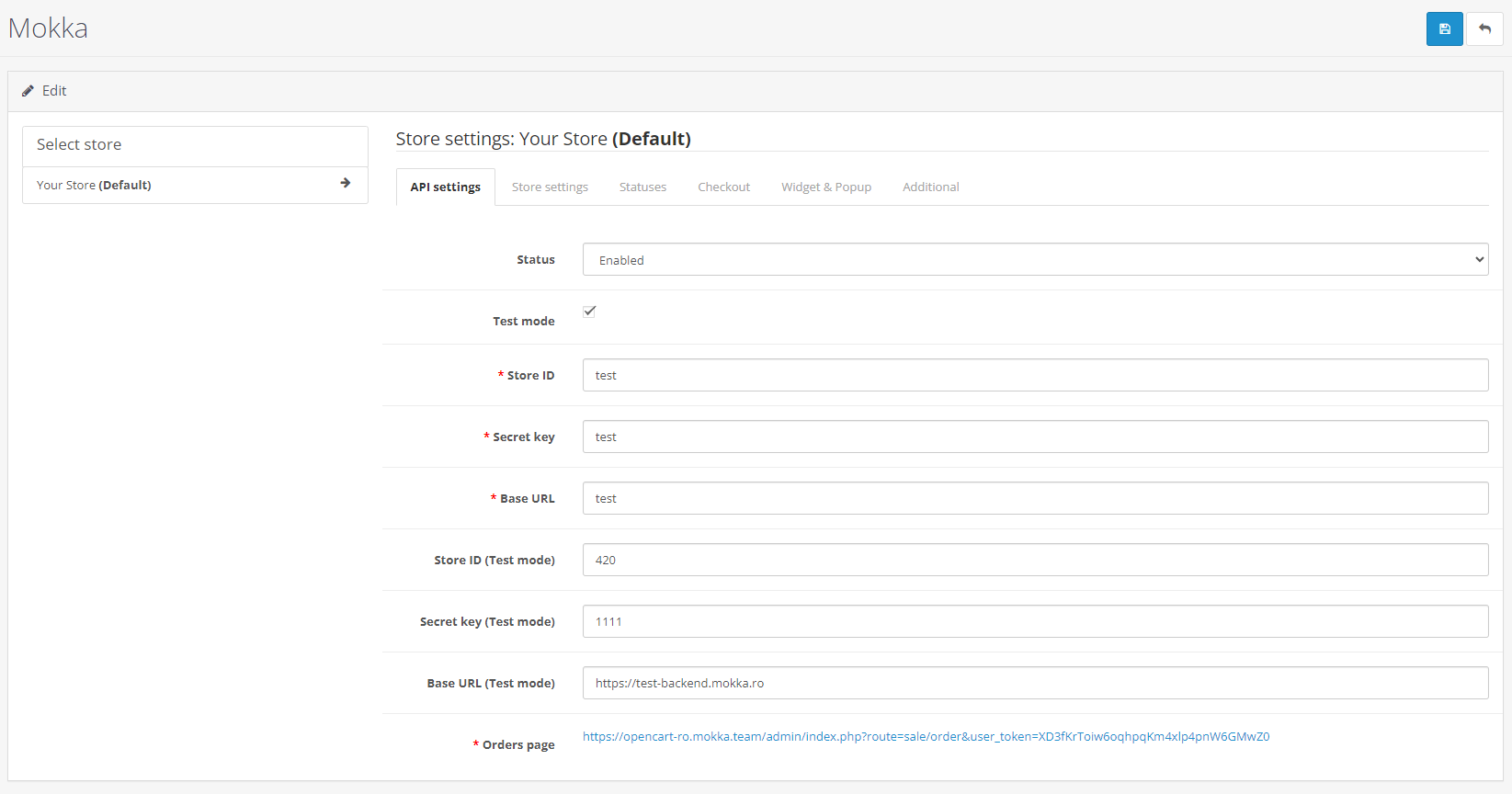
When installing the module, by default the test mode is set with store test data.
For testing and debugging, set the values of the Store ID and Secret Key fields. Test data will be sent to you by the Mokka project manager.
Before the live launch, the Mokka project manager will send you the live Store ID and Secret Key
Store settings tab
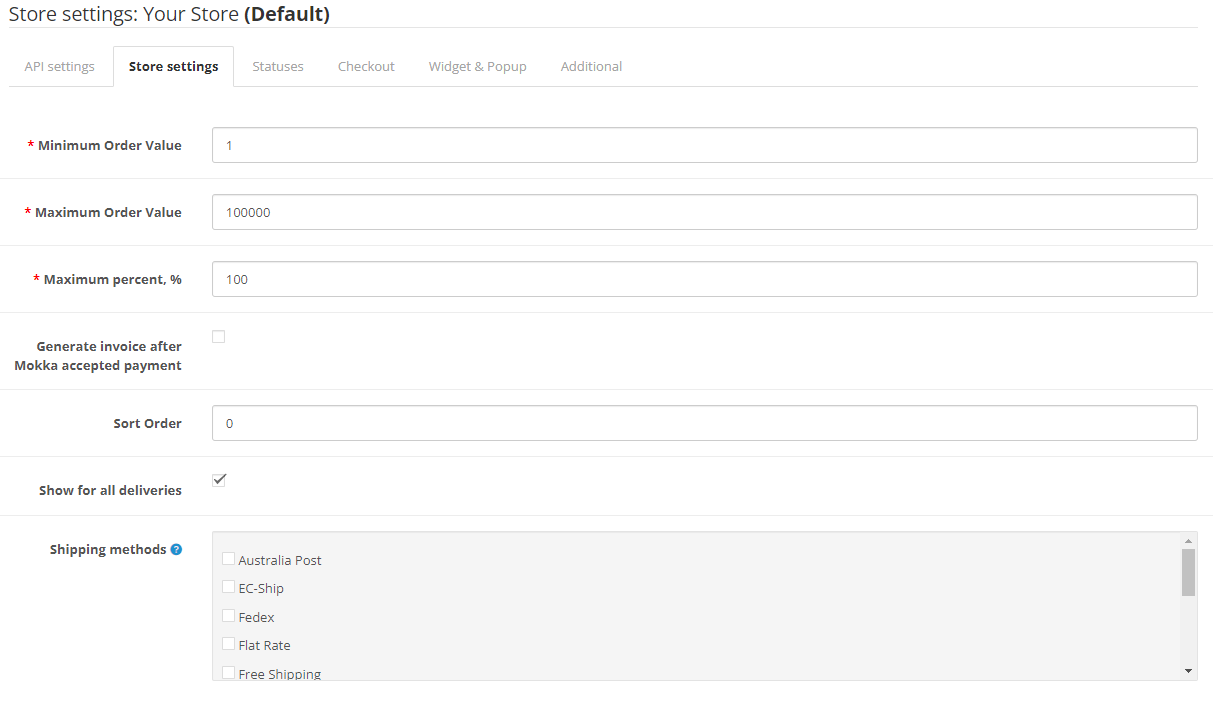
The values below are set based on the contract:
- Minimum order value – the minimum price of the goods to display the payment;
- Maximum order value – the maximum price of the goods to display the payment;
- Maximum percent, % – the maximum percentage of the order amount which can be payed with Mokka.
Sort order – a numeric value indicating the serial number of the display of the Mokka payment type is indicated (default is 0).
Show for all deliveries – activates Mokka payment for all the deliveries.
Shipping methods – you can choose shipping methods compatible with Mokka payment.
Statuses settings tab
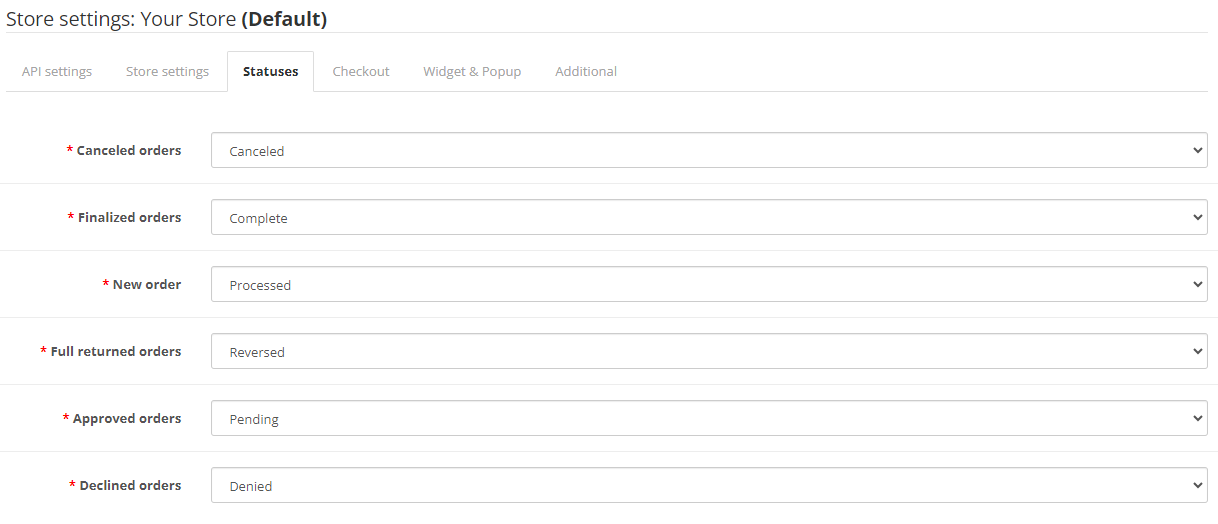
Cancelled orders – specify the status to which the order should go if you have received an order, but it cannot be completed and must be cancelled before the order is issued to the client;
Finalized orders – specify the status, to which the completed order is transferred (the product is issued to the client)
New orders – specify the status when a decision from Mokka has not yet been received, or the customer has not completed the order process.
Full returned orders – indicate the status of your store, in which the order is returned in full after being issued to the client (for example, in the event of a warranty case);
Approved orders – specify the status to which the order should go after successful payment Mokka.
Declined orders – specify the status when Mokked made a negative decision about the order.
Checkout tab
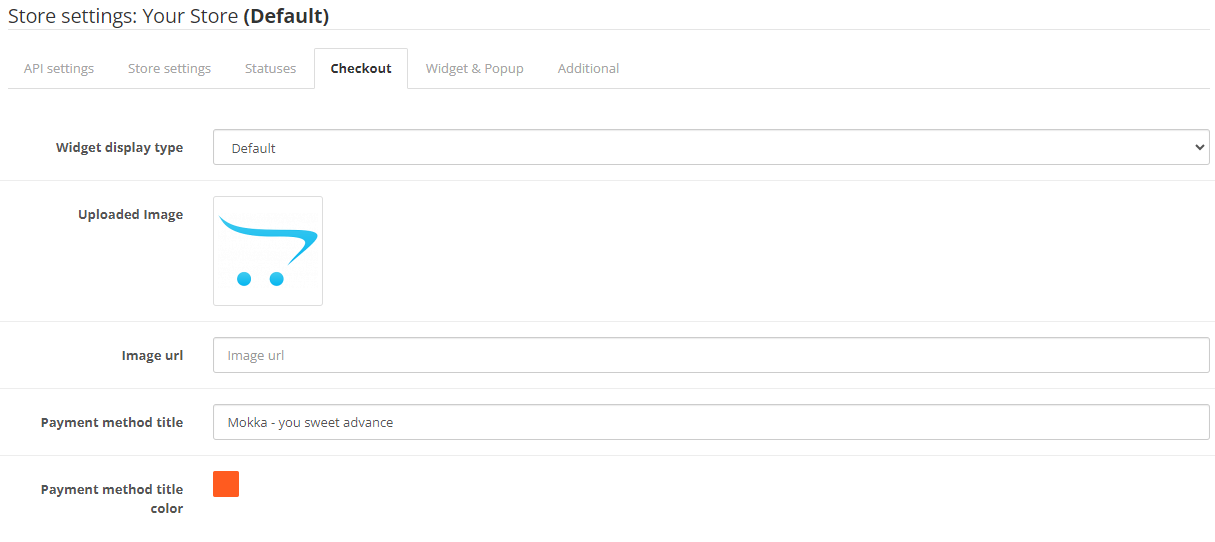
Here are the Mokka logo settings on the checkout page.
Select “Enabled” in the “Widget status on the product page” field to activate the display of the broken price on the product card.
In the “Color scheme” setting, you can choose the format for displaying the “Broken price” on the product card.
Widget & Popup tab
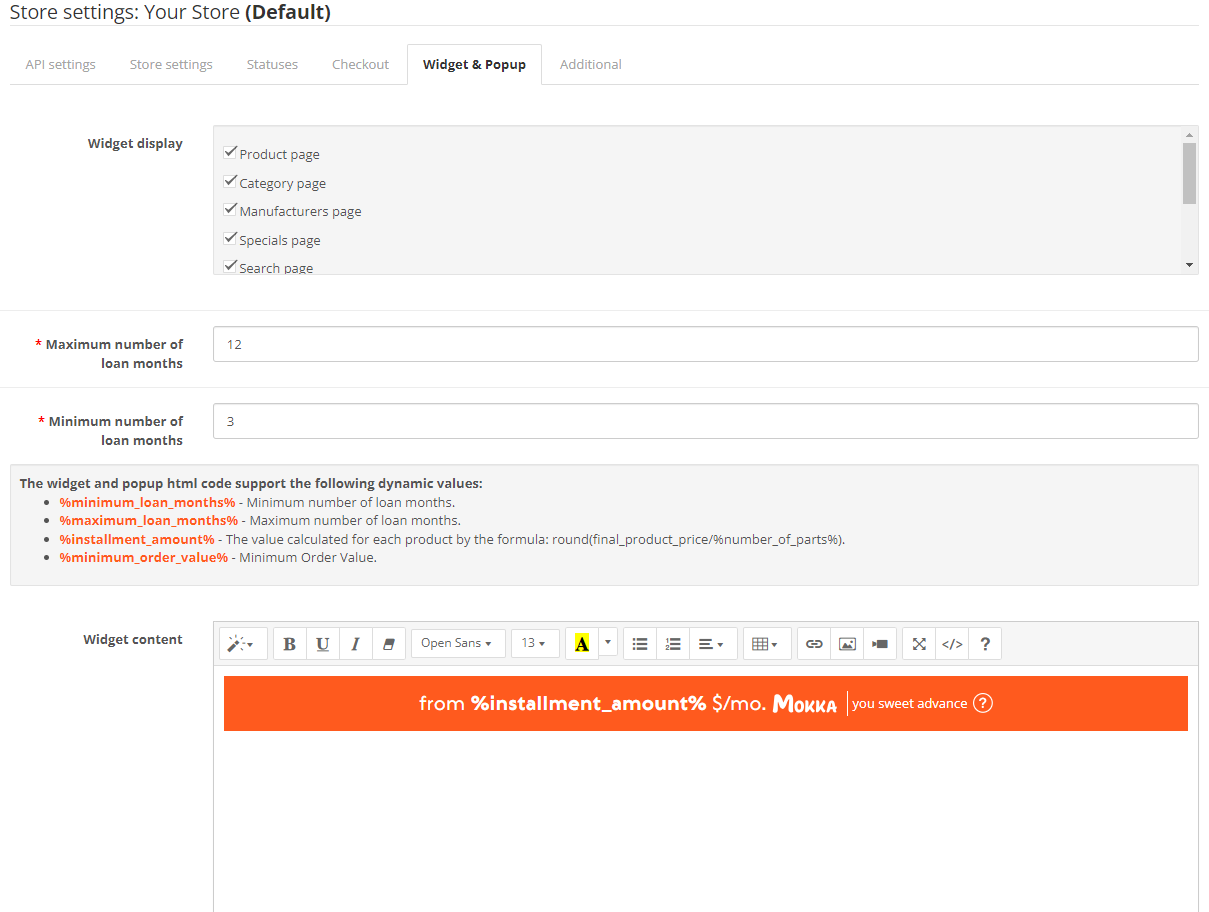
Here you can find the widget settings on the product page.
Select certain pages in the “Widget display” field to show the Mokka price widget on it.
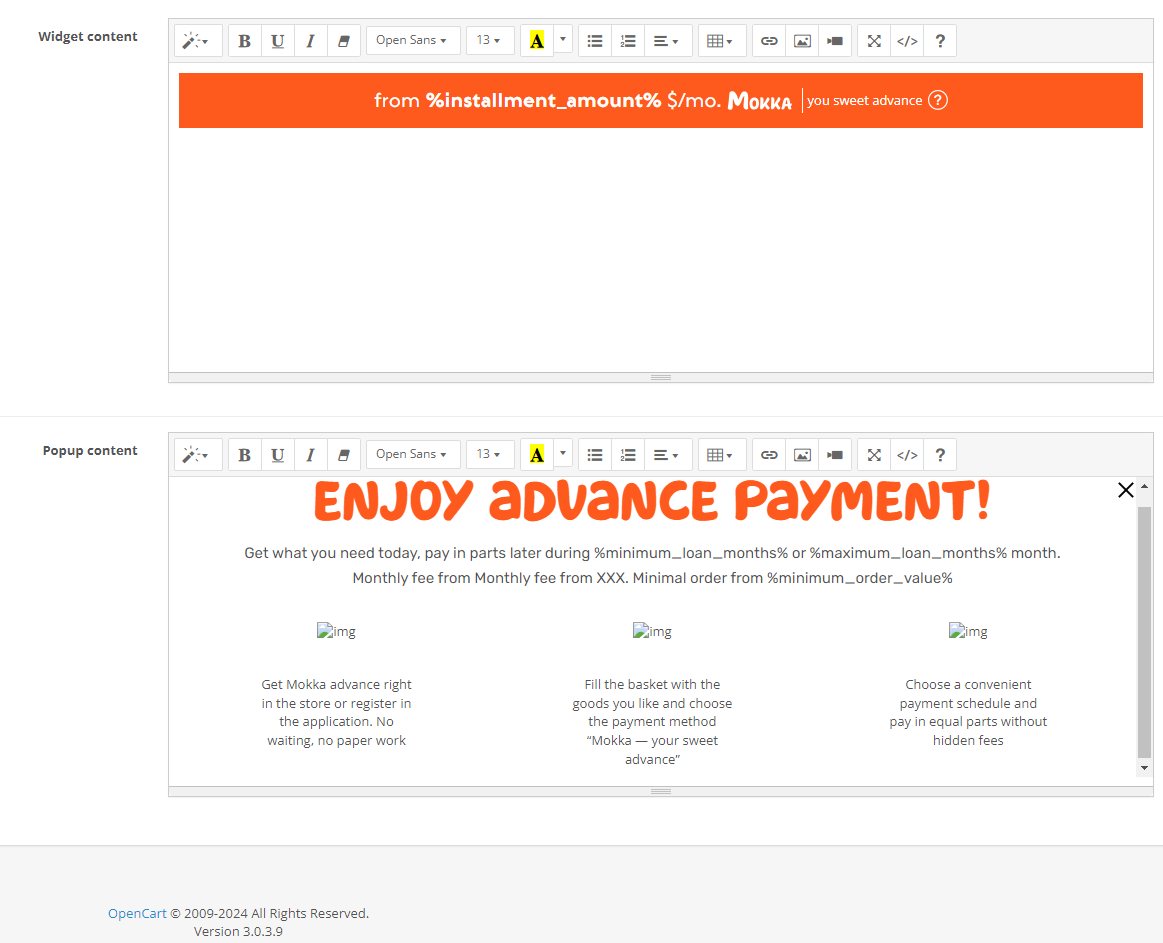
In the “Widget content” and “Popup content” fields, you can choose the format for displaying the Mokka price widget on the product card.
The values below are set based on the contract:
- maximum number of months of loan;
- minimum number of months of loan.
Additional tab
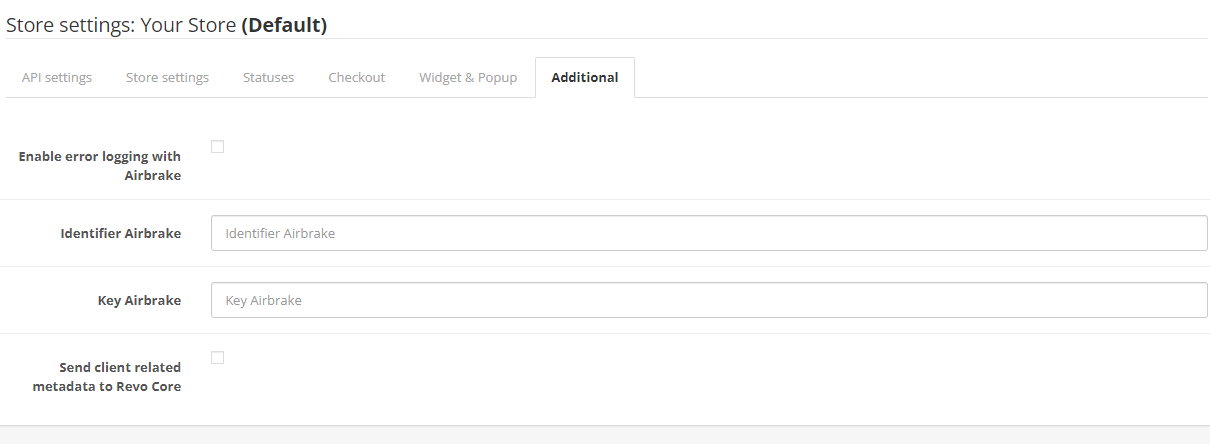
By default, it is recommended to activate “Enable error logging with Airbrake” and “Send client-related metadata to Revo Core”. In case of problems, such logs will help to localize and fix the problem quickly. Specify the Identifiers where you would like to receive bug reports.
Click “Save” to apply the settings.
After installing and activating the module, the “Divided Price” (or Mokka price widget) should appear on the product pages and the payment method “Mokka – payment in advance” should be added to the cart and checkout pages.
Testing
Checkout
- Collect the basket for the minimum amount.
- Go to cart.
- In the payment methods, select «Mokka – advance payment».
- Click «Checkout».
- A data entry form will open on the screen. Fill in all fields of the form. The phone number for approval on the test environment must match the mask +7 8881xxxxxx.
- Click «Checkout» and enter the confirmation code (always 1111 on a test environment).
- Select the payment schedule you are interested in and click the «Pay in advance» button.
Completion
- Go to the «Orders» section in the OpenCart panel.
- Select a previously placed order by checking the box next to the respective order.
- In the «Actions» menu, select the status «Change status to completed».
- Click «Apply».
As a result, the order will be completed.
Cancellation
- Go to the «Orders» section in the OpenCart admin panel.
- Select a previously placed order by checking the box next to the desired order.
- In the «Actions» menu, select the «Change status to canceled» status.
- Click «Apply».
As a result, the order will be canceled.
Refund
- Go to the «Orders» section in the OpenCart admin panel.
- Open a previously placed order by clicking on its ID.
- Change the status of the order to “Refunded“.
- Click «Update»
Activation in the production environment
After successfully installing the module and debugging on test data, activate the module so that the Mokka team can test the functionality and activate the service. To activate, follow the instructions:
On the Extensions –> Extensions page. In the filter, select “Payment”, the list of modules will be updated. In the list of modules we find “Mokka” and click “edit” in the column “Actions” opposite the module.
Go to the “API” tab Uncheck the “Test mode” checkbox, and replace the value of the production Store ID and Secret key with those that the Mokka team will provide you. Click “Save”.
As a result, the payment method “Mokka – pay in advance” will be available to your customers.
You can contact the Mokka integration team or your manager to activate Mokka. We will check all the functions and marketing materials for compliance with our service-level agreements and marketing guides.