Shopify
Online stores working on Shopify can also integrate Mokka as a payment method through a module that was developed specifically for the online store platform. This article describes the process of installing, configuring, and testing modules on Mokka for integration with Shopify.
Before you process with integration, please be sure you have your own Store ID, Store Secret Key, and Base URL. Without this data, you won’t be able to make it. You can obtain them by visiting Mokka and contacting our Sales and Support in your country or by sending an email to [email protected].
Installation of the Mokka plugin for the checkout and product pages
Mokka widgets show the minimum installment a customer can pay for a certain product with Mokka. This is the recommended element that increases conversion to buy.
For widget installation, you should perform the following steps:
1. Get into the administration panel of the online store based on Shopify
2. In the left menu, click on “+Add apps”, at the bottom of the menu
3. Click on the link “Shopify App Store” at the bottom of the window
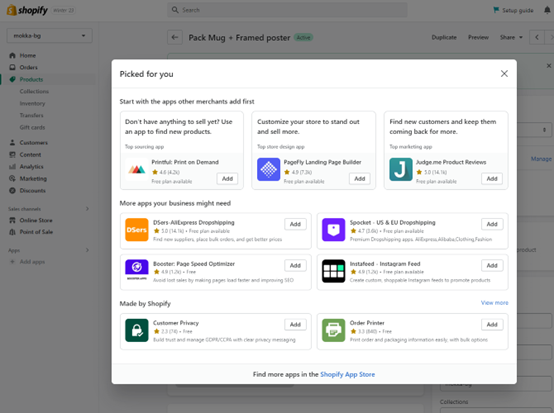
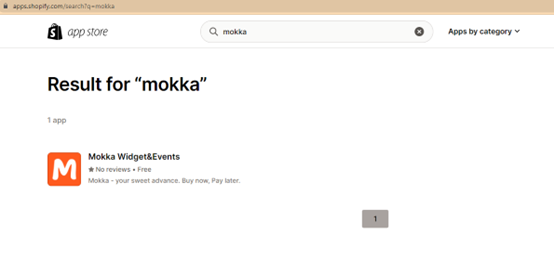
4. Shopify App Store > search for “Mokka“
In the Shopify App Store, type “Mokka” in the search box and select “Mokka Widget&Events“.
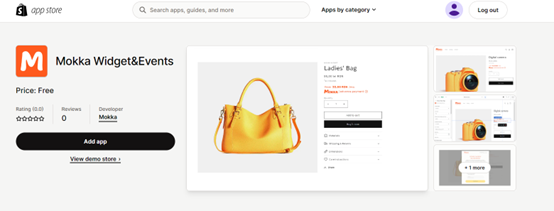
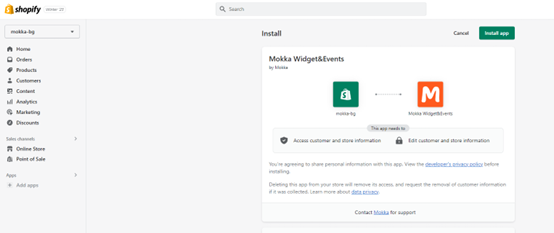
5. On the “Mokka Widget&Events” app page, click the “Add app” button.
6. You will be redirected to a page in your online store admin panel to install Mokka. Click the “Install App” button at the top right corner of the page.
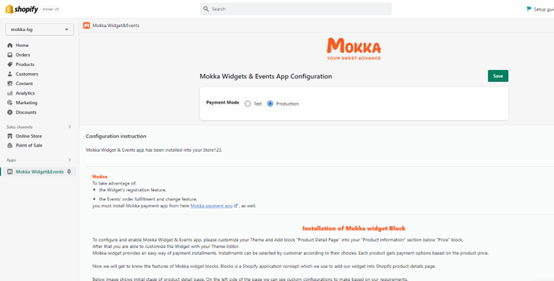
7. You will be redirected to another plugin page where you need to save the payment method:
- In the ‘Payment Method’ setting, select ‘Production’
- Press the ‘Save’ button, at the top right of the page
Configuration of the Mokka payment method
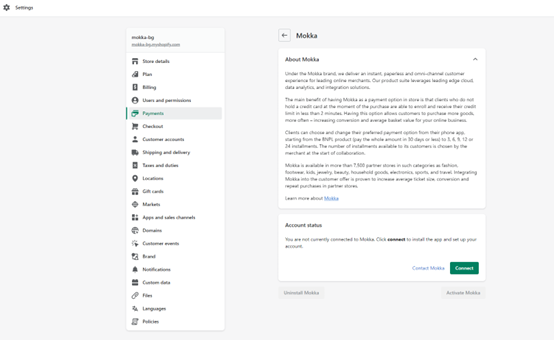
After installing the Mokka widget for the product pages, you will be redirected to a new page where you can integrate Mokka as a payment method. This is a required step to be able to display the Mokka app on product pages as well.
1. To add Mokka as a payment method, at the bottom right of the screen, press the “Connect” button.
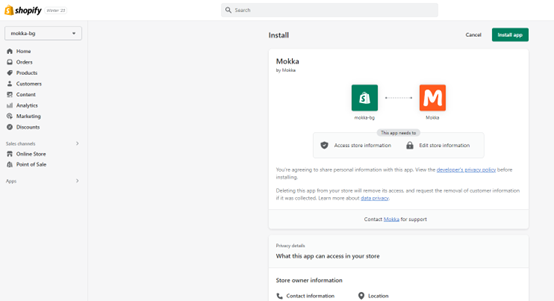
2. Click the “Install App” button to install the Mokka payment method in your online store.
3. Once it has been installed, please go to Settings > Payments > Mokka > Manage page for configuration
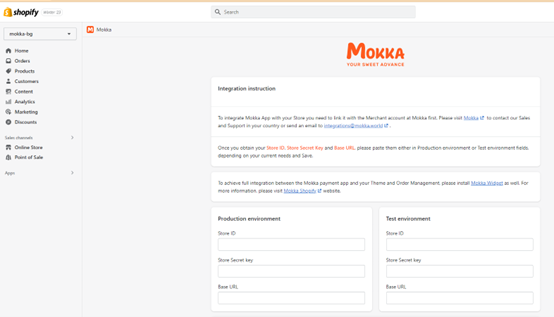
The page you are redirected to contains payment method settings in Mokka. Fill in the fields as shown:
Production environment
- Store ID – enter the Store ID value you received along with the Mokka integration information
- Store Secret key – enter the Store Secret value you received along with the Mokka integration information
- Base URL – enter the Base URL value you received along with the Mokka integration information
Test environment
Note: the fields below should be filled only if you have enabled the Mokka payment method in test mode.
- Store ID – enter the Store ID (test) value you received along with the Mokka integration information
- Store Secret key – enter the Store Secret key (test) value you received along with the Mokka integration information
- Base URL – enter the Base URL (test) value you received along with the Mokka integration information
Additional settings
- Minimum Order Value – enter the minimum order value with Mokka in the online store.
Click the ‘Save’ button
Activation of the Mokka payment method in the online store based on Shopify
After the initial configuration of Mokka as a payment method, you need to activate Mokka.
1. Go to Settings > Payments menu of your online store (you can also enter the keyword ‘Payments’ in the search box in the admin panel of the online store).
2. Navigate to the Mokka section and click on the “Manage” link
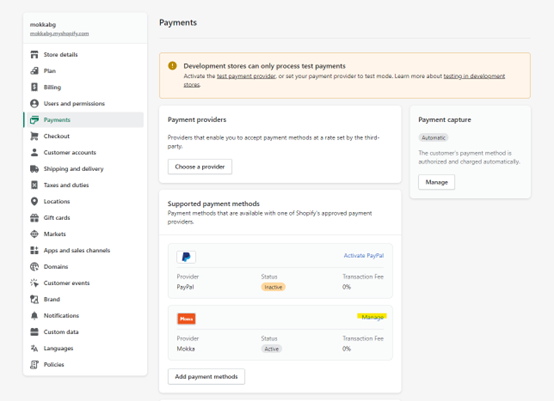
2. On the page that will open, click on the “Activate Mokka” button
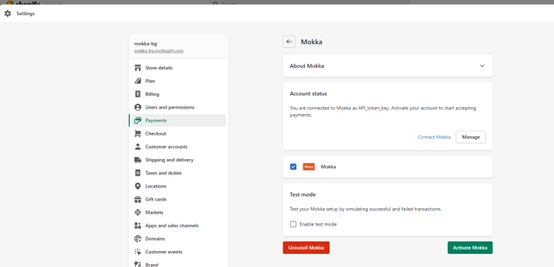
Note: To enable the test mode of the Mokka payment method, check the ‘Enable test mode’ checkbox.
3. If you want to make changes to the payment method configuration once Mokka is activated, click the ‘Manage‘ button on the same page.
Configuration of the Mokka widgets in Shopify
By installing the ‘Mokka Widget&Events’ app, Mokka widgets are previewed in your Shopify store. By default, the texts are in English. To translate them, as well as to choose the most suitable design for them, you need to make a few changes to the theme of your online store.
Mokka widget display setting on the product page
1. Go to Admin > Sales channels > Online Store > Themes
In the “Sales channels” section of the “Online Store” menu, select the “Themes” submenu.
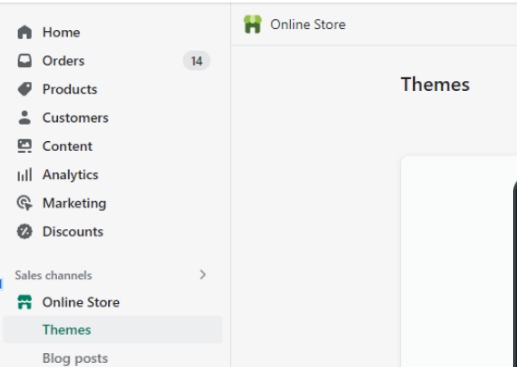
2. Navigate to the theme your online store uses and click the “Customize“ button

3. Theme Editor > Default Product template
To change the Mokka widget on the product page, in the theme editor open the dropdown item ‘PRODUCTS‘ and select the ‘Default Product‘ template.
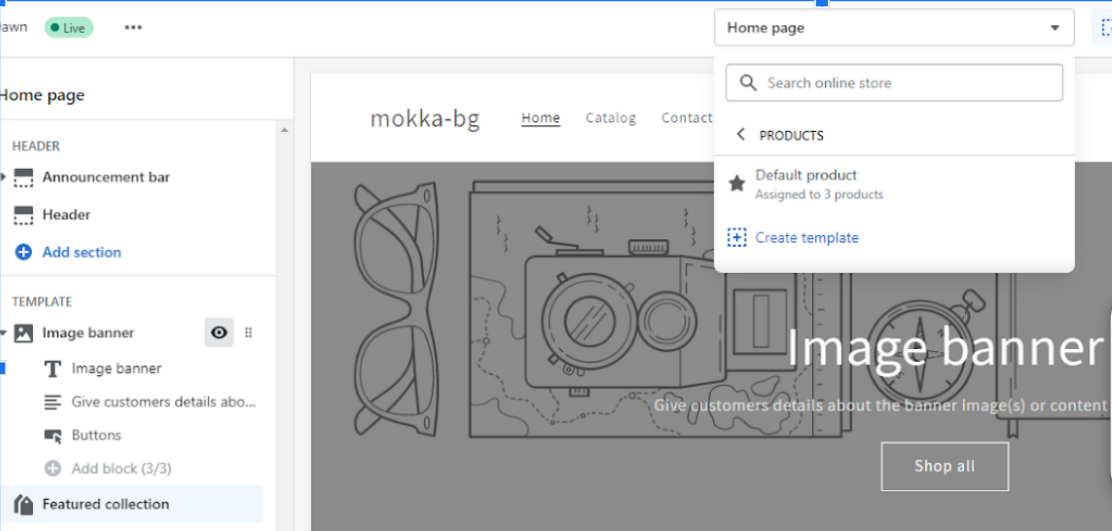
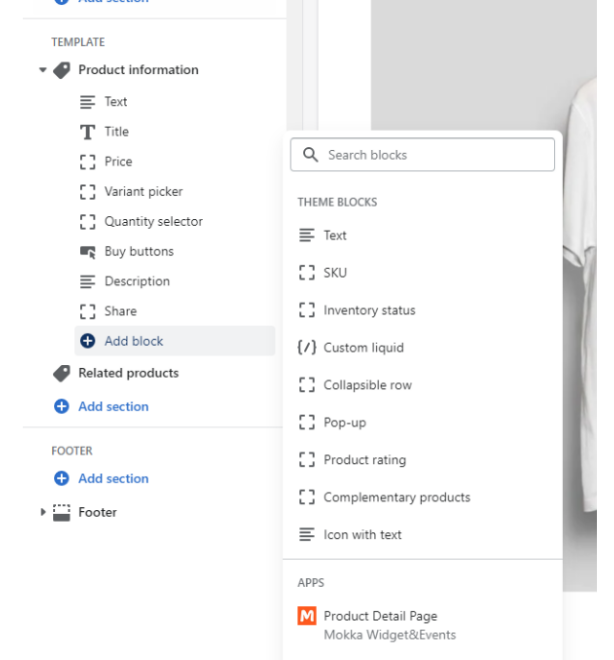
4. Go to Default Product > Template > Product Information > Add block > Mokka Product Detail Page.
In the left menu, in the ‘Template’ section, subsection ‘Product information’, select ‘Add block’. In the additional menu that opens, select ‘Mokka Product Detail Page’.
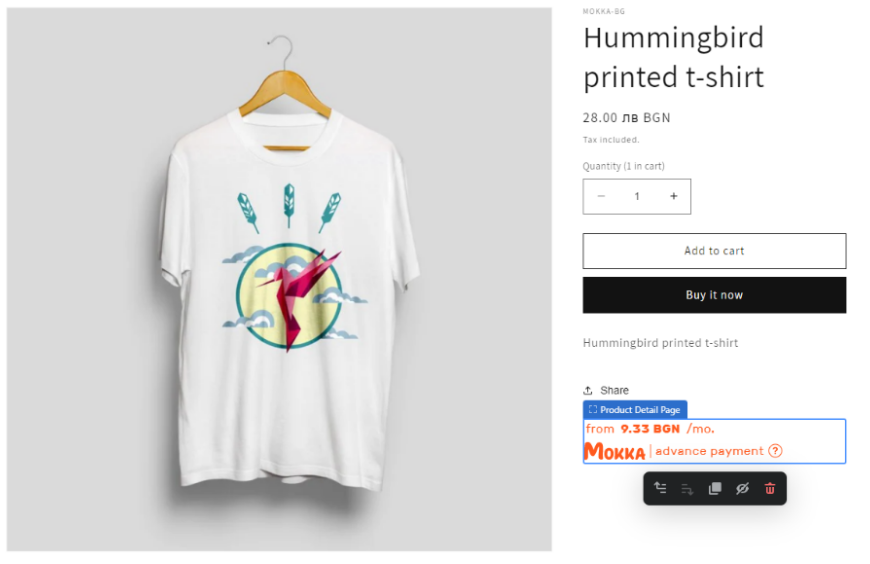
5. The block will be previewed on the product page as shown below.
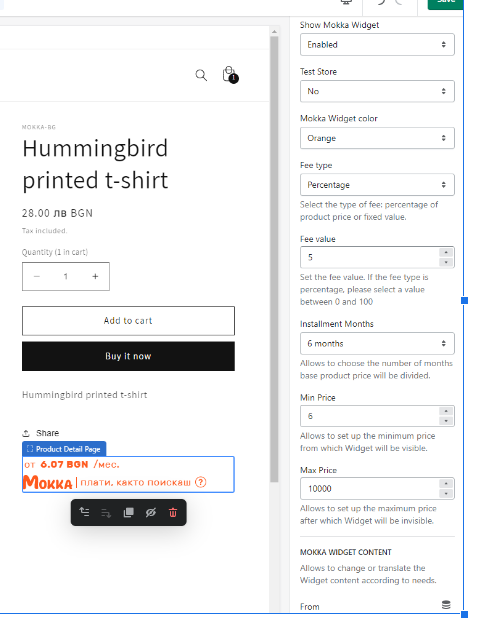
- Show Mokka Widget = Enabled to enable the display of the widget.
- Test Store – shows whether Mokka is running in test mode in the online store.
- Mokka Widget color – choose the widget preview design in your online store.
-
Percentage – select the type of calculation of the payment of a Mokka service for the user, according to Appendix 2 to the Mokka Partnership Agreement
- percentage of product price = percentage of the value of the order
- fixed value = fixed value
- Fee value – set the value of the Mokka service for the customer. If measured as a percent, and must be between 0 and 100, without adding a percent sign at the end (%). Used to calculate the approximate monthly Mokka payment displayed in the widget.
- Installment Months – select the number of months for dividing the payment into parts, on the basis of which the calculation in the widget will be made of the approximate value of the monthly payment when ordering with Mokka.
- Min Price – minimum value for an order with Mokka. If the product price is below this amount, the Mokka widget will not be displayed on the page.
- Max Price – maximum value for an order with Mokka. If the product price is above the entered value, the Mokka widget will not be displayed on the page.
- From = from
- Month = /month
- Advance payment = pay as you wish
Here you can translate the contents of the popup that appears after clicking the question mark icon into the Mokka widget. Below we provide the texts in English, prepared by our marketing team.
- Widget Popup Heading = Enjoy advance payment!
-
Widget Popup description = Get what you need today, pay in parts later. Feel the advantage of shopping with Mokka amount today – pay up to 30 days, without additional costs, or split the payment into convenient monthly parts!
-
Popup App Image description = Fill in a short form and find out your Mokka purchase amount. No waiting, no paperwork – as easy as 1-2-3.
-
Popup Buy Image description = Add the products you want to the basket and choose “Mokka – buy now, pay later” as the payment method.
-
Popup Schedule Image description = Choose a payment period for Mokka purchases that is convenient for you. No hidden costs.
10. Click the ‘Save‘ button at the top right of the page.
Mokka widget preview setting in the catalog page
You can preview the Mokka widget for the product list as well, for each product, and show buyers the value of their monthly payment for the product if they pay with Mokka.
Deactivation and removal of the Mokka components
Removal of the Mokka widget from a Shopify online store
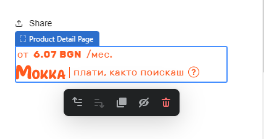
Deactivation of the Mokka payment method from a Shopify online store
If you want to remove a Mokka payment method from your online store, you need to log in to the website’s admin panel.
1. Go to Admin > Settings > Payments
Pass to the ‘Settings’ and click on the ‘Payments‘ menu.
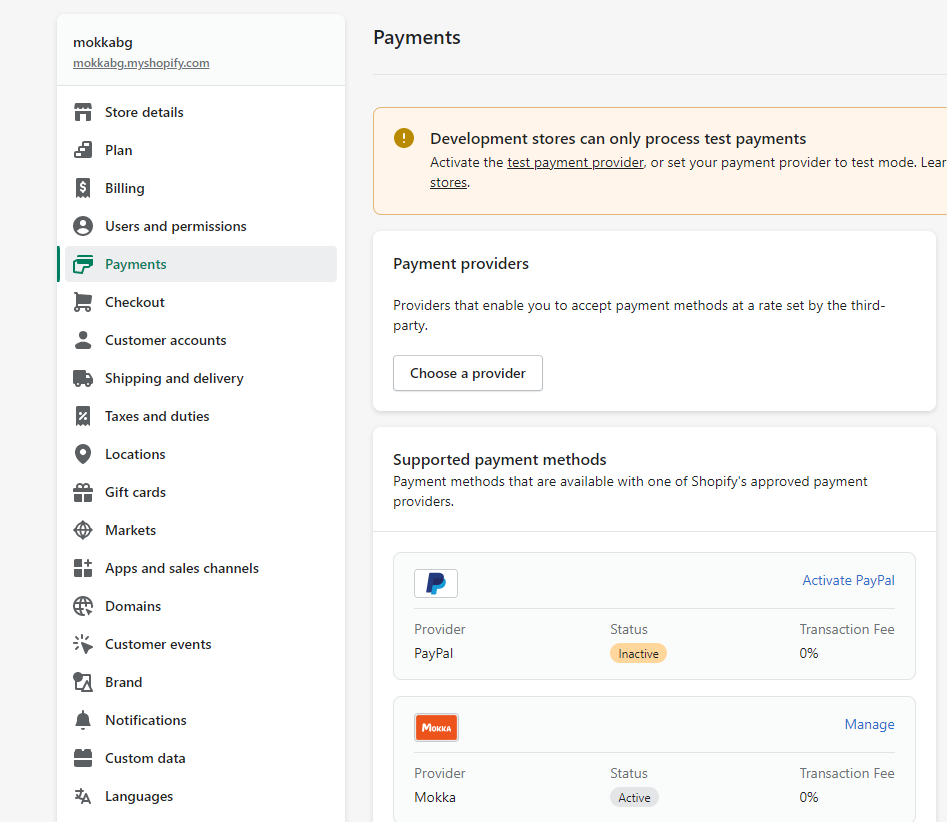
2. On the page that will be opened, in the ‘Supported payment methods‘ section, scroll to the Provider Mokka and click on the ‘Manage’ link.
3. You will be redirected to the Mokka payment method management page. Click on the ‘Deactivate Mokka’ button.
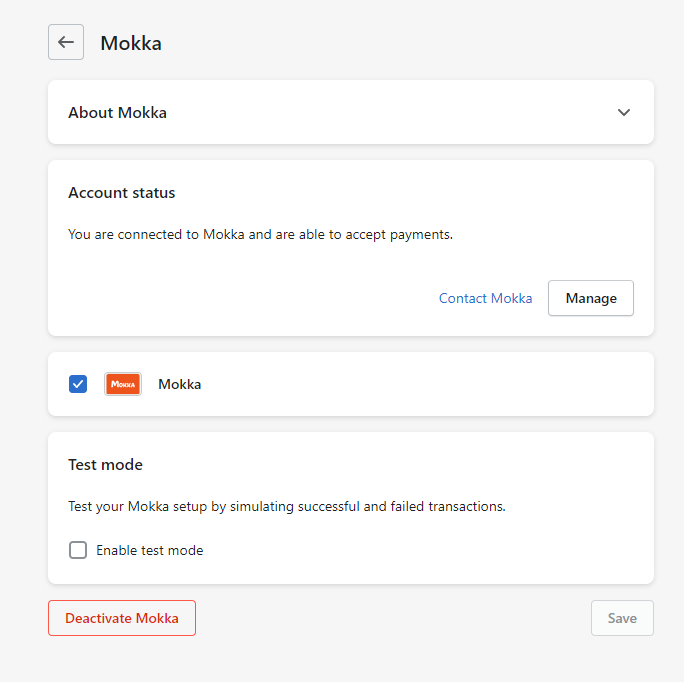
4. You will see an additional confirmation message. Click the ‘Deactivate Mokka’ button.
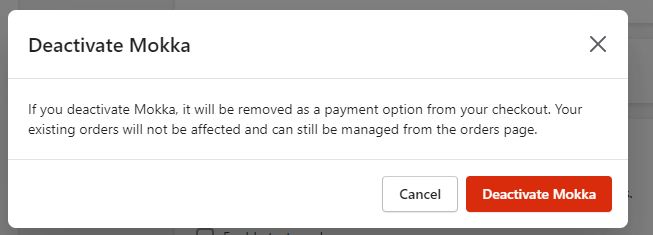
5. You will be redirected back to the Mokka path method page, but it is now inactive. Click the ‘Uninstall Mokka’ button.
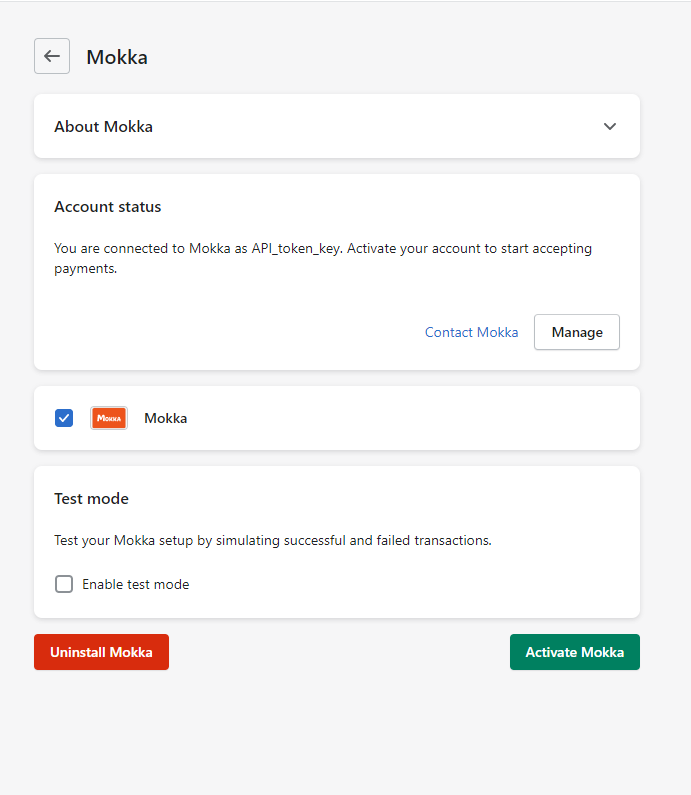
Note: the Mokka payment option will no longer be displayed on the checkout page.
Removal of the Mokka app from a Shopify online store
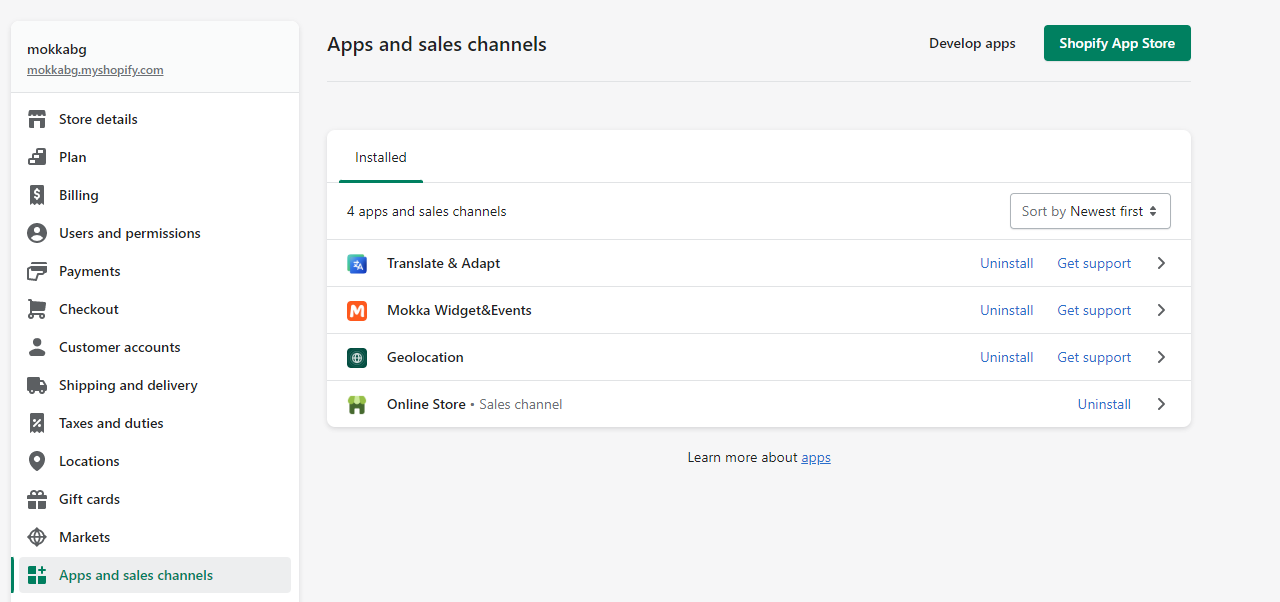
1. Go to Settings > Apps and Sales channels
You should pass to the ‘Settings’ page and enter the “Apps and sales channels” menu.